
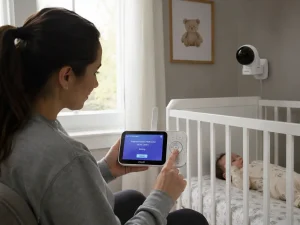
If you want to know how to link a VTech baby monitor, the setup is usually fast and easy. In most cases, turn on the parent unit and camera, open pairing mode, and wait for them to connect. I once helped a family member set up a VTech monitor before a busy week. We followed the steps, and the devices paired in less than a minute.
The short answer is simple. Make sure both devices have power. Use the correct pairing mode. Then wait for the link to finish. In this guide, you will learn the exact steps. You will also see easy fixes and quick checks to help keep video and sound working well.
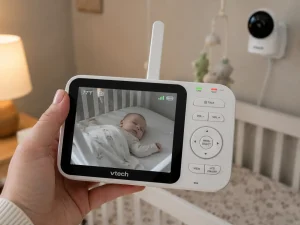
How to Link a VTech Baby Monitor: Easy Setup, Wi-Fi Pairing, and Quick Fixes
Linking a VTech baby monitor is usually fast. Most models connect in a few minutes. Many units already come paired. If the link stops working or you add a new camera, pair them again.
This guide shows how to connect your monitor, set up Wi-Fi models, fix common issues, and check that everything works.
Quick Answer
Turn on the camera and parent unit.
Open the parent unit menu. Choose Pair Camera or Add Camera. Press and hold the Pair button on the camera. Wait for the devices to connect.
Most pairings finish in under one minute.
You may need to pair again if:
- You add a new camera
- You replace the parent unit
- You reset the monitor
- The connection is lost
Some VTech models also connect to a phone app.
Before You Start
A few quick checks can save time.
Know Your Monitor Type
Video Monitor
Uses a parent unit and camera only.
Wi-Fi Smart Monitor
Can connect to a phone app.
Multi-Camera System
Supports more than one camera.
Check These First
- Charge both devices
- Keep them close together
- Make sure Wi-Fi works if needed
- Have your Wi-Fi password ready
Do Not Pair If
- A firmware update is running
- The device is acting unstable while charging
- Old pairings may cause conflicts
What You Need
| Item | Needed |
|---|---|
| Parent unit | Yes |
| Camera | Yes |
| Wi-Fi | Some models |
| Mobile app | Some models |
Missing one item can stop the setup.
How to Link a VTech Baby Monitor
Step 1: Turn On Both Devices
Turn on the camera first.
Then turn on the parent unit.
Wait for normal power lights.
Step 2: Open Pairing Mode
Go to the parent unit menu.
Look for:
- Pair Camera
- Register Camera
- Add Camera
- Camera Settings
Choose an empty camera slot.
Step 3: Start Camera Pairing
Find the Pair button.
It is often on the back or bottom.
Press and hold it.
The light may start blinking.
Step 4: Wait
Do not press other buttons.
Most devices connect in 30–60 seconds.
Step 5: Confirm Connection
Check for:
- Live video
- Clear sound
- Stable signal
If these work, pairing is done.
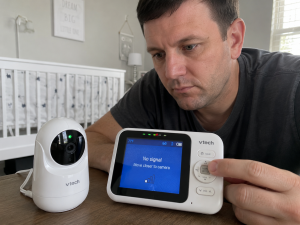
What the Lights Mean
| Light | Meaning |
|---|---|
| Solid light | Connected |
| Flashing light | Pairing |
| Red light | Problem |
| No signal | Not linked |
The lights show monitor status.
How to Connect Wi-Fi Models
Install the App
Download the VTech app for your model.
Sign in.
Join Wi-Fi
Open network settings.
Pick your Wi-Fi.
Enter the password.
Add Your Device
Follow the app steps.
Some models scan a QR code.
Test Remote View
Open live video.
Watch for a stable feed.
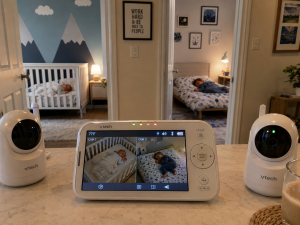
Add More Cameras
Many VTech systems support more cameras.
To Add One
Repeat the pairing steps.
Pick a new camera slot.
Switch Cameras
Use the parent unit controls.
Some models switch by themselves.
Name Cameras
Use easy names:
- Nursery
- Playroom
- Toddler Room
Fix Common Pairing Problems
Parent Unit Cannot Find Camera
Move devices closer.
Check power.
Try pairing again.
Pairing Times Out
Restart both devices.
Start over.
Connection Drops
Move away from routers or cordless phones.
Reduce distance.
Connected but No Video
Check the lens.
Restart both devices.
Reset or Re-Pair?
Try pairing first.
Reset only if needed.
Keep the Connection Strong
Reduce Distance
Walls and metal can weaken signals.
Lower Wireless Noise
Move your router if needed.
Keep Batteries Charged
Low power can cause problems.
Safety Tips
- Use a strong password
- Install updates
- Keep cameras out of reach
- Learn if your model uses cloud access
Check That Setup Worked
| Test | Good Result |
|---|---|
| Video | Smooth feed |
| Audio | Clear sound |
| Signal | No drops |
| App | Works remotely |
Test for a few minutes.
Long-Term Care
You may need to pair again after:
- Factory reset
- Device replacement
- Major updates
To avoid issues:
- Keep software updated
- Avoid unplugging often
- Check performance now and then
Final Thoughts
Learning how to link a VTech baby monitor is simple.
Turn on both devices. Start pairing. Wait for the connection. Then test the video and sound.
Once setup is done, you can focus on watching your child with more confidence.
FAQs for How to Link Vtech Baby Monitor
How do I link a VTech baby monitor to a camera?
Turn on both devices first. Open the pairing menu on the parent unit, then press the Pair button on the camera. Most VTech baby monitors connect within one minute.
Why is my VTech baby monitor not linking?
Low battery, long distance, or pairing errors can stop the link process. Move both units closer, restart them, and try the pairing steps again.
Do all VTech baby monitors need Wi-Fi to link?
No. Most VTech video monitors link directly to the camera without Wi-Fi. Only smart Wi-Fi models need a network for app access and remote viewing.
How long does it take to link a VTech baby monitor?
Most VTech baby monitor pairing sessions take 30 to 60 seconds. Keep both devices powered on and avoid pressing buttons during the connection process.
Can I link more than one camera to a VTech baby monitor?
Yes. Many VTech baby monitor systems support multiple cameras. Add each camera through the pairing menu and assign it to an open camera slot.
What does a flashing light mean during VTech monitor pairing?
A flashing light usually means pairing is in progress. Wait for the light to become steady or for the video feed to appear on the parent unit.
How do I link a VTech baby monitor to my phone?
Install the VTech app, sign in, and connect the monitor to Wi-Fi. Follow the app setup steps to add the device and enable remote viewing.
Should I reset or re-pair my VTech baby monitor?
Try re-pairing first if the monitor loses connection. Use a full reset only when pairing fails several times or the system has software issues.
Why does my VTech baby monitor connect and then disconnect?
Weak signal, wall interference, or wireless noise can cause drops. Move devices closer together and keep them away from other wireless equipment.
How can I tell if my VTech baby monitor linked successfully?
Check for a live video feed, clear audio, and a stable signal icon. If all three work well, the VTech baby monitor pairing is complete.

Shahin is the owner and creator of BabyCareAdvisor, a trusted resource for practical baby care and parenting guidance. He shares helpful, easy-to-understand information about baby products, car seats, strollers, breast pumps, baby safety, and everyday parenting. His goal is to help parents make informed decisions by providing clear, practical, and research-based advice.